Pi-Fusion
On this page
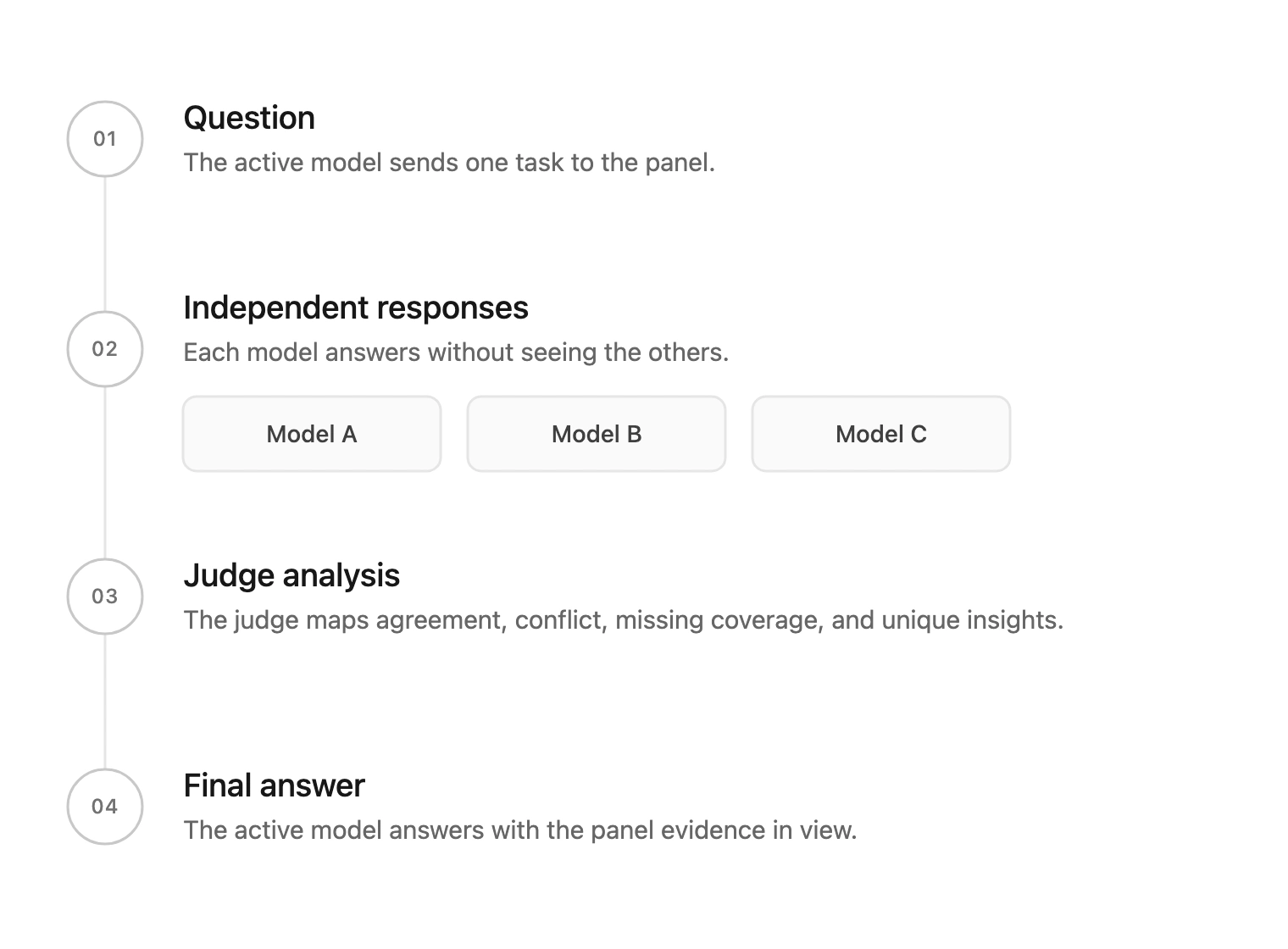
Pi-Fusion gives Pi a second opinion without replacing the model you are working with. It sends the same task to a small panel of models you have already authenticated in Pi. A judge model compares their answers, and the active model uses that comparison to write the final response.
The panel does not vote on one answer. Pi-Fusion keeps the useful differences: where the models agree, where they contradict one another, what only some of them noticed, and what the whole panel missed. Those signals help the active model identify assumptions that need evidence before it acts.
Use Pi-Fusion when another perspective could change the result, such as architecture decisions, research, difficult debugging, unfamiliar code, and consequential refactors. Each run makes several model calls, so it takes more time and tokens than a normal prompt. Routine edits and mechanical work rarely need it.
A short example
Suppose you ask whether a product should replace its REST application programming interface (API) with GraphQL. One panel model may focus on client flexibility, another on caching and operations, and another on migration cost. The judge records the shared conclusions and the contested assumptions. The active model can then explain the trade-off and call out what you need to verify in the codebase or with the team.
Agreement is a stronger signal than one model repeating its own confidence, but it is not proof. Several models can share the same blind spot. Pi-Fusion helps the agent decide where to investigate; it does not replace source checks, tests, or human judgment.
How Pi Fusion Works
1. Pi starts a Fusion run
The extension registers a fusion tool and the /fusion* commands with Pi. In the default available mode, the active model can call the tool when a task benefits from multiple perspectives. You can guarantee one run with /fusion <prompt> or run every prompt through a configured panel by enabling forced mode.
The registered tool accepts the task and optional recent-conversation controls. It cannot select models, enable tools, or change token and reasoning budgets. Those settings remain under user control.
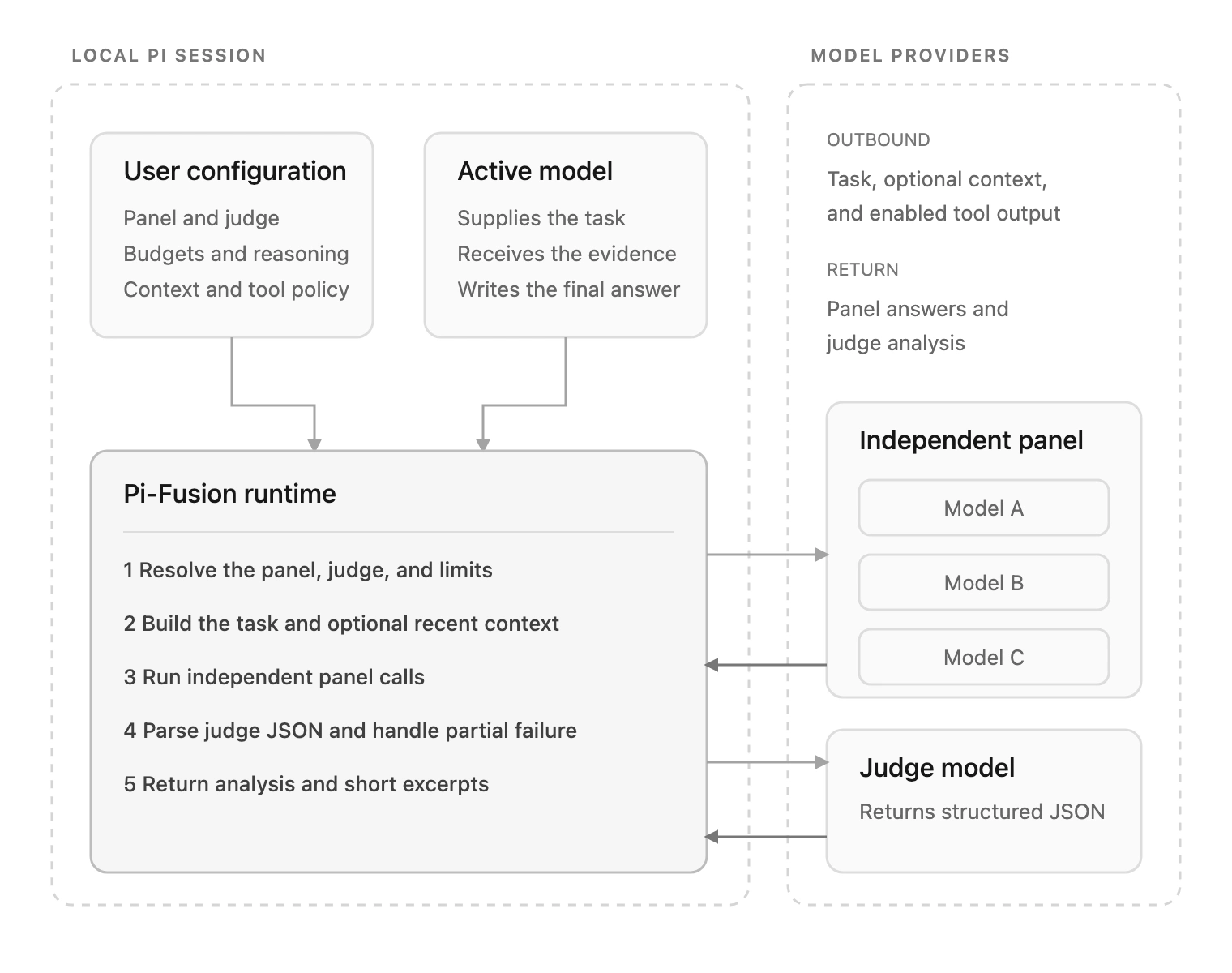
2. Pi-Fusion resolves the configuration
Panel selection follows this order:
- A named panel selected for one run with
--panel. - The panel snapshot saved by
/fusion-setupfor the current session. - The
defaultPanelinfusion.json. - The older top-level
panelandjudgefields. - Automatic selection from authenticated text models.
Pi-Fusion reads project configuration from .pi/fusion.json in trusted projects, then falls back to ~/.pi/agent/fusion.json. A project file replaces the global file; the two files are not merged.
Automatic selection spreads the panel across providers when possible. The default panel limit is three models, with a hard limit of eight. A configured model without working authentication is skipped with a warning. If no judge is configured, Pi-Fusion uses the active model when available, then falls back to the first panel model.
3. Pi-Fusion builds the task
By default, panelists receive only the Fusion prompt. They do not receive the full Pi conversation. The caller can include recent context with context_mode: "recent" and choose between one and ten recent user turns. Pi-Fusion removes prior Fusion state and result dumps from that context so they are not sent back through the panel.
4. The panel answers independently
Pi-Fusion calls the resolved panel models through Pi's model registry and existing provider authentication. Calls run concurrently, with up to four in flight. Each panelist receives the same task and an independent system prompt, so it does not see the other answers.
Panel reasoning level, output budget, and temperature come from the resolved user configuration. If a model does not support the requested reasoning level, Pi-Fusion runs it without that level and reports a warning instead of silently substituting another setting.
5. The judge compares the successful answers
When at least two panelists return usable text, the judge receives the task and their responses. It returns structured JSON with five fields:
consensus: points that most models sharecontradictions: topics where the models take different positionspartial_coverage: points raised by only part of the panelunique_insights: points raised by one modelblind_spots: relevant topics no panelist addressed
The judge compares the answers rather than averaging them into one voice. It does not use tools.
6. The active model writes the response
The fusion tool returns the judge analysis and short excerpts from the panel answers to the active model. The complete panel text remains available in the run details and through /fusion-report. This keeps the normal agent context smaller while preserving a diagnostic path when you need to inspect the raw answers.
The active model remains responsible for the final response. Pi-Fusion supplies evidence about agreement and disagreement; it does not replace the active model with the judge.
Failure behavior
Pi-Fusion keeps partial results when it can:
- If one panelist succeeds, it returns that full answer and skips the judge.
- If two or more panelists succeed but the judge fails or returns invalid JSON, it returns panel excerpts with a warning.
- If every panelist fails, it returns an error and classifies common credit, quota, and rate-limit failures.
- Empty panel answers count as failures and do not enter judge synthesis.
This behavior lets one provider fail without discarding useful answers from the others.
Tool and data boundaries
Panel tools are off by default. You can enable a read-only set (read, grep, find, and ls) or allow bash, edit, and write. Mutating tools require consent and force panelists to run one at a time so they cannot edit the same workspace concurrently. Tool loops have a configurable call limit and stop after repeated identical calls or consecutive errors.
The tool list comes from a fixed allowlist of Pi's built-in tool factories. The inner panel never receives the fusion tool, which prevents recursive Fusion runs.
The prompt is sent to every panel provider and the judge provider. When you include recent context, that context goes to them too. When panel tools are enabled, file contents and tool output may also be sent to each panel model's provider. Review the panel and tool settings before using Fusion with private material.
Install and use it
Install the extension from npm:
pi install npm:pi-fusionRun /reload if Pi is already open. No configuration is required for available mode; Pi-Fusion can choose a diverse panel from your authenticated models. Use /fusion-setup when you want a fixed panel, judge, reasoning level, or tool policy.
/fusion Review this architecture and identify assumptions that need evidence./fusion on enables forced mode for the session, but it requires a resolvable panel from /fusion-setup, fusion.json, or defaultPanel. Automatic selection alone is not enough for forced mode. Check the active settings with /fusion-status.